Smartphone Motion Controller
How to use Smartphone motion to control a video game.
As a big fan of local party games that use smartphones as controllers (eg. jackbox games), and someone with a lot of nostalgia for the Nintendo Wii remote’s motion controls, I wanted to try to combine the two and create a game that could be played with smartphone motion.
This article is not about using motion controls to play a game running on the smartphone itself, as that is quite easy to achieve. I want my smartphone to behave like my Wii remote did; controlling a game on a separate display.
In particular, my aim is to have a virtual 3D object that will replicate the motion of my smartphone.
TLDR
Check out this repo for a minimal example of smartphone motion control that you can set up on your own machine.
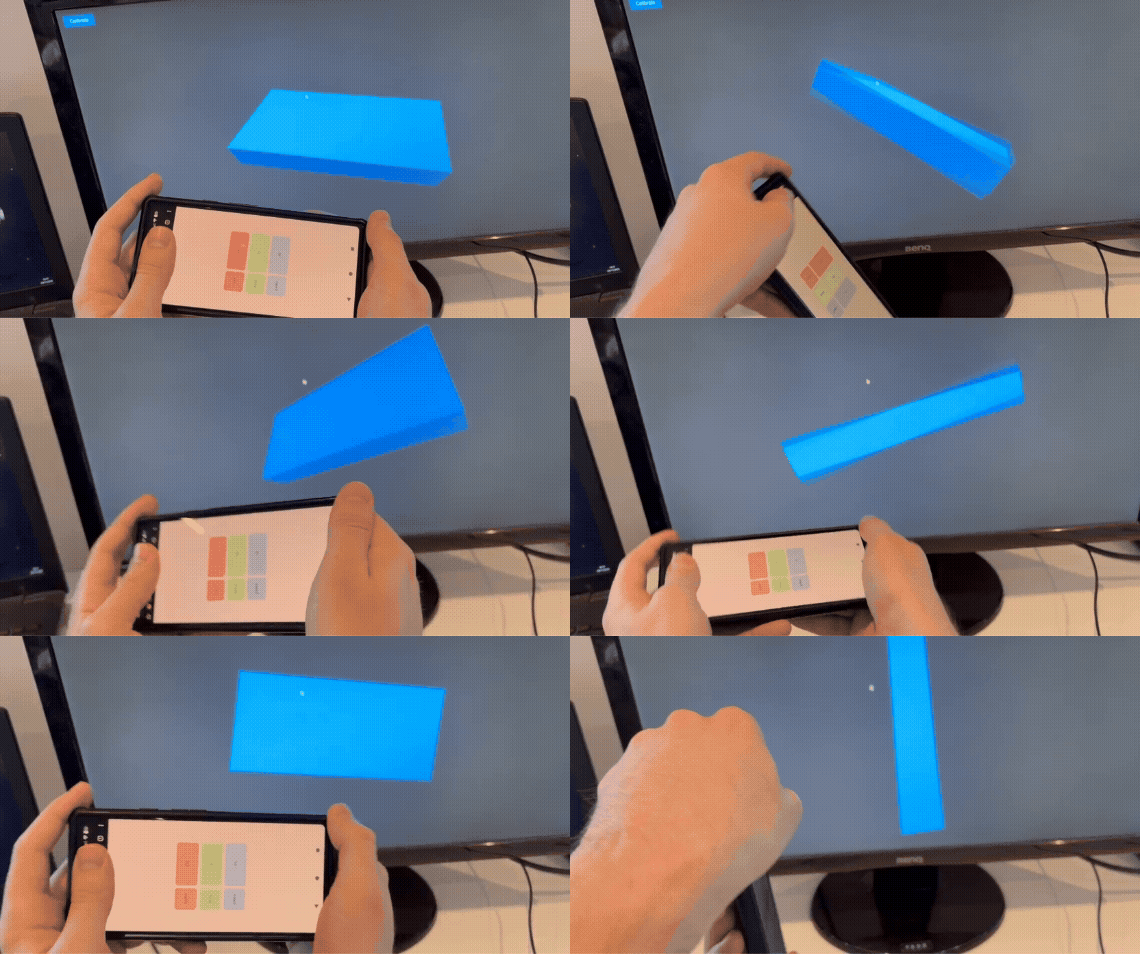
And check out this simple web game prototype I made using the concepts in this article.
Components
This project will use 4 components. An HTTPS server and websocket server (hosted in the cloud), the smartphone controller, and the game application.
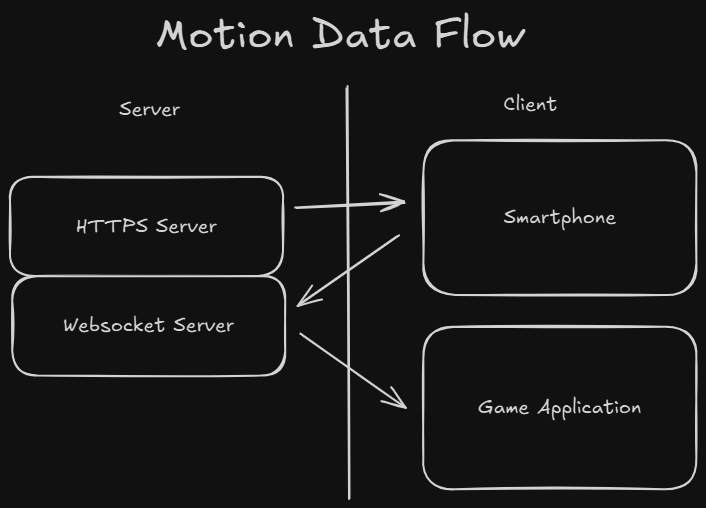
The following steps describe the way in which we make the smartphone’s orientation data available to the game.
- The smartphone navigates to a controller webpage (hosted on the HTTPS server) making its orientation data available within the page’s Javascript context.
- The smartphone opens a connection to the websocket server and then periodically sends the orientation data over this connection.
- The game application opens a connection to the websocket server.
- When the websocket server receives data from the smartphone it simply relays it to the game application.
It is possible to host the servers locally. This would remove the need for cloud hosting and reduce latency (as the data would not need to perform a round trip through the cloud). However, device orientation data is only available in secure contexts, and in a secure context you can only create secure websocket connections. So your local websocket server must use SSL/TLS which makes sharing the application awkward.
Recording motion input
Our controller webpage will include some JavaScript code to set up device orientation monitoring and send the data to our websocket server. The JavaScript window interface helpfully provides an event returning the orientation of the device accessing the webpage (called deviceorientation). The code below updates a variable motion_data with the device orientation as it changes.
1
2
3
4
5
6
var motion_data = {"alpha": 0, "beta": 0, "gamma": 0};
window.addEventListener('deviceorientation', (event) => {
  motion_data = {"alpha": event.alpha,
                 "beta": event.beta,
                 "gamma": event.gamma};
});
Orientation is described as rotations about 3 axes.
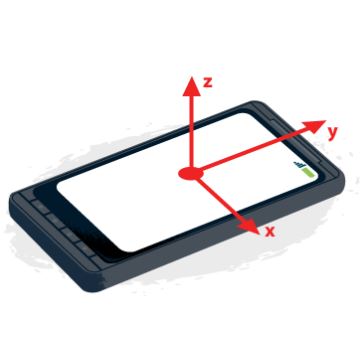 Source: MDN docs
alphais rotation about axis z (Twisting)betais rotation about axis x (Tipping)gammais rotation about axis y (Tilting)
When all rotations are zero the device is flat and pointing north.
If you are viewing this on a smart device you can see your devices orientation on this page.
Connecting to the websocket server
The HTTPS and websocket servers will share the same host so we will connect to the websocket with a relative path. It is also important to declare whether it is the smartphone (controller) or game application (display) that is connecting to the websocket server, as the server will treat them differently. This is done through the URL parameter clientType.
1
var ws = new WebSocket("/?clientType=controller");
Once the connection has been opened we are ready to send the motion data to the websocket server. We will use an Interval to do this every 17ms (60 times a second).
1
2
3
4
5
setInterval(() => {
  if (ws && ws.readyState == WebSocket.OPEN) {
    ws.send(JSON.stringify(motion_data));
  }
}, 17);
This concludes the controller webpage.
The websocket server
We will use Node.js with express to create our web server. The following code creates and starts a webserver exposing the controller webpage controller.html on the root path /.
1
2
3
4
5
6
7
const express = require('express');
const PORT = process.env.PORT || 3000;
const app = express()
  .get('/', (req, res) =>
          res.sendFile('controller.html', { root: __dirname }))
  .listen(PORT, () =>
          console.log(`Listening on ${PORT}`));
Next we will create the websocket server using the ws package.
1
2
const WebSocket = require("ws");
const wss = new WebSocket.Server({ server: app });
We will store the connections in a dictionary indicating which is the smartphone controller and which is the game application display.
1
var sockets = {"display": null, "controller": null}
When the server receives a connection we assign the relevant dictionary key as follows.
1
2
3
4
5
6
7
wss.on("connection", (ws, req) => {
  const parameters = url.parse(req.url, true);
  var client_type = parameters.query.clientType;
  sockets[client_type] = ws;

  ...
})
Finally, if both controller and display are connected, we relay all messages sent by the controller to the display.
1
2
3
4
5
6
7
8
9
10
wss.on("connection", (ws, req) => {
  ...

  if (sockets['display'] != null &&
      sockets['controller'] != null) {
    sockets['controller'].onmessage = (event) => {
        sockets['display'].send(event.data);
    };
  }
})
Receiving motion data in the application
I will outline how to ingest and use the motion data in an application built with JavaScript and the ThreeJS 3D library, but note that this should be possible with any language / engine that can open a websocket connection.
We can open a websocket connection to the server in the same way we did for the controller, but now with the display client type.
1
var ws = new WebSocket("/?clientType=display");
Now we will listen for incoming messages, parse them and apply the rotations to a cuboid visible on the display.
1
2
3
4
5
6
7
var motion_data;
ws.onmessage = (event) => {
    motion_data = JSON.parse(event.data);
    cuboid.rotation.y = THREE.MathUtils.degToRad(motion_data.alpha);
    cuboid.rotation.x = THREE.MathUtils.degToRad(motion_data.beta);
    cuboid.rotation.z = -THREE.MathUtils.degToRad(motion_data.gamma);
};
To get this step correct there are several things to keep in mind.
- Check the axis labels for your 3D library. In the phone diagram above, alpha represented a rotation around the up/down axis labelled z. For ThreeJS the up/down axis is labelled y so alpha should be applied to the y axis in our application.
- Check that the axes are pointing in the right direction. In particular, note that gamma is rotated around the forward facing axis. If your 3D library has the forward/back axis pointing towards the camera, this rotation will need to be reversed (as is done in the code above).
- Make sure the order that rotations are applied to the object is alpha, beta, and then gamma. ThreeJS rotation order is ‘XYZ’ by default, so it needs to be changed to ‘YXZ’ to get the correct result.
- Motion data is reported in degrees while most 3D libraries expect radians, so you will likely have to do a conversion.
We would like the motion of the cuboid on the display to reflect the motion of the smartphone controller exactly, but note that there is no way for our application to know whether the phone is pointing at our display or not. Remember that alpha is a rotation from compass north. In order for the application to know what direction “towards the display” is, we need to explicitly tell it.
We will achieve this with a calibration step. When a button is pressed in the application it will record the current alpha value and offset future alpha values by it. Here is the updated code.
1
2
3
4
5
6
7
8
9
10
11
12
13
14
var motion_data;
var alpha_zero = 0;
ws.onmessage = (event) => {
    motion_data = JSON.parse(event.data);
    var new_alpha = motion_data.alpha - alpha_zero;
    cuboid.rotation.y = THREE.MathUtils.degToRad(new_alpha);

    ...
};

const btn = document.getElementById('calibration_btn');
btn.addEventListener('click', () => {
    alpha_zero = motion_data.alpha;
});
Upon starting the application, the user should be prompted to point their smartphone at the display and click the calibrate button. After this step, the orientation of the cuboid should match the users smartphone controller.
Limitations and possible improvements
The main limitation of the current project is that we only record device orientation, and lateral motion is completely undetected. This means that our virtual 3D object can only copy the rotation / direction of our phone and not its full movement.
Smartphones do contain accelerometers to detect lateral forces. However they are not accurate enough to be used to monitor the relative position of the smartphone. To track position accurately we need an external sensor (like the Nintendo Wii’s Sensor Bar). In the spirit of utilizing hardware that people often already own, one could use a webcam and an object tracking model to track the phones position for use in the game / application.